Data Flows
A Data Flow is a real-time data pipeline between a data queue (DQ) on your IBM i and an external system. An Outbound Data Flow sends data from the IBM i to a cloud service. An Inbound Data Flow brings data from a cloud service to the IBM i.
To create a Data Flow:
- In the navigation bar, click Data Flows.
- Click Create Data Flow.
-
On the Choose a data flow type screen, choose Outbound (IBM i to Cloud) or Inbound (Cloud to IBM i) and select the Native Connection to your IBM i. The Help me to choose button opens the documentation in a dialog.

-
Fill in the form, see Data Flow form, and click Submit.
The Data Flows list shows the columns Name, Type, Status, Data Queue and Format File (as LIBRARY/NAME), Sink, Msgs 5m, DQ Depth, Min ms, Max ms, Avg ms and Last Message. Click a Data Flow to open Update Data Flow.
Monitoring a Data Flow
The metrics columns of the list show what a running Data Flow does. They are collected in memory since the Hub started and cover a rolling window of the last 5 minutes, so they start from zero after a restart.
| Column | Meaning |
|---|---|
| Msgs 5m | Messages received from the source in the last 5 minutes |
| DQ Depth | Entries currently waiting in the data queue. The Hub reads the value from the IBM i |
| Min ms, Max ms, Avg ms | Fastest, slowest and average time per message in the last 5 minutes, from the read at the source to the publish at the sink |
| Last Message | When the last message was received from the source |
GET /admin/dqpollers returns the same values in the metrics object of each Data Flow. It also contains the totals since the start (messagesReceivedSinceStart), the split of the processing time into sourceTimeMs and sinkTimeMs, the age of the oldest entry in the queue (dqOldestMessageAt), the time of the last depth check (dqDepthCheckedAt) and the reason when the depth is not available (dqDepthError).
Data Flow statuses and actions
The top bar of Update Data Flow shows the status badge and the buttons Start (Stop while the Data Flow is active) and Remove. If the Data Flow has an error, its text is shown below the top bar.
| Status | Meaning |
|---|---|
| Active | The Data Flow is running |
| Inactive | The Data Flow is created or stopped and is not running |
| Invalid | The sink could not be initialised. Correct the configuration and submit it again |
| Failed | A runtime error stopped the Data Flow. The error text is shown on the page |
You can start a Data Flow while its connection is ACTIVE or WARNING. To delete a Data Flow, click Remove and confirm with Yes. For how to recover from Invalid and Failed Data Flows, see Data Flow States and Errors.
Data Flow form
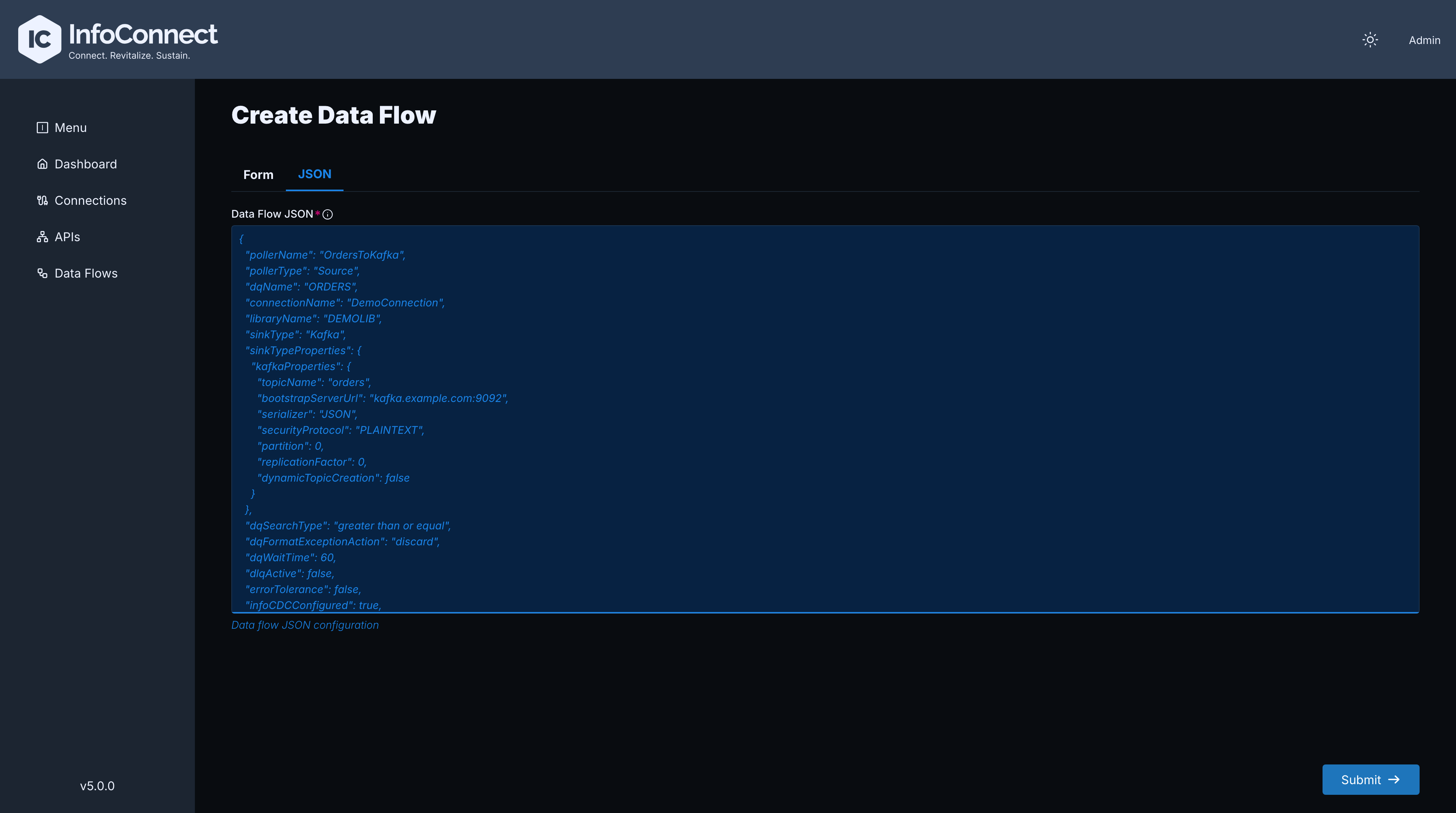
The form has the tabs Form and JSON. In the JSON tab (Data Flow JSON), the Form tab is updated as soon as the text is valid JSON. Sensitive fields within sinkTypeProperties, such as passwords or keys, must be encrypted values in the JSON, see Encrypting secrets.
Main fields
| Field | Notes |
|---|---|
| Data Flow Name | Required, unique. Letters, digits and hyphens only (Poller Name must not contain special characters). Cannot be changed on update |
| Data Flow Type | Source (Outbound) or Sink (Inbound) |
| Connection name | The Native Connection |
| InfoCDC Source | Checkbox, checked by default (Use InfoCDC as the source for this data flow) |
Data Queue Settings
| Field | Notes |
|---|---|
| Batch size | Number of messages read in one cycle. Use 1 or more; 0 or less reads one message per cycle |
| Thread count | Minimum 1 |
| Source data queue name | Required. Labelled Sink data queue name for Inbound flows |
| Library name | Required |
| Data queue key | Optional |
| Data Search type | Equal, Not equal, Less than, Less than or equal, Greater than or equal. Default Greater than or equal |
| Format File Name, Format File Library | Optional. Leave blank to use auto: the Hub reads the format file from each InfoCDC message |
| Wait Time (seconds) | Default 60, minimum 1 |
| Format Exception Action | Discard (default) or Place back into queue |
Sink Settings
Select the Sink Type (required; default JMS). The fields below it depend on the selected type, see Sink settings reference.
DLQ Settings
| Field | Notes |
|---|---|
| DLQ Active | - |
| Error Tolerance | - |
| DLQ Name, DLQ Library, DLQ Format File Name, DLQ Format File Library | DLQ Name is required by the Hub when DLQ Active is selected |
Transformer
Optional. Transform the data before it is sent to the destination.
Sink types
The Sink Type list contains 15 types: JMS, SNS, SQS, ServiceBus, EventGrid, EventHub, Kafka, JDBC, GCP, GCS, S3, ADLS, FTP, SFTP and ABS. The file and object storage sinks GCS, S3, ADLS, FTP, SFTP and ABS are new in 5.0.0.
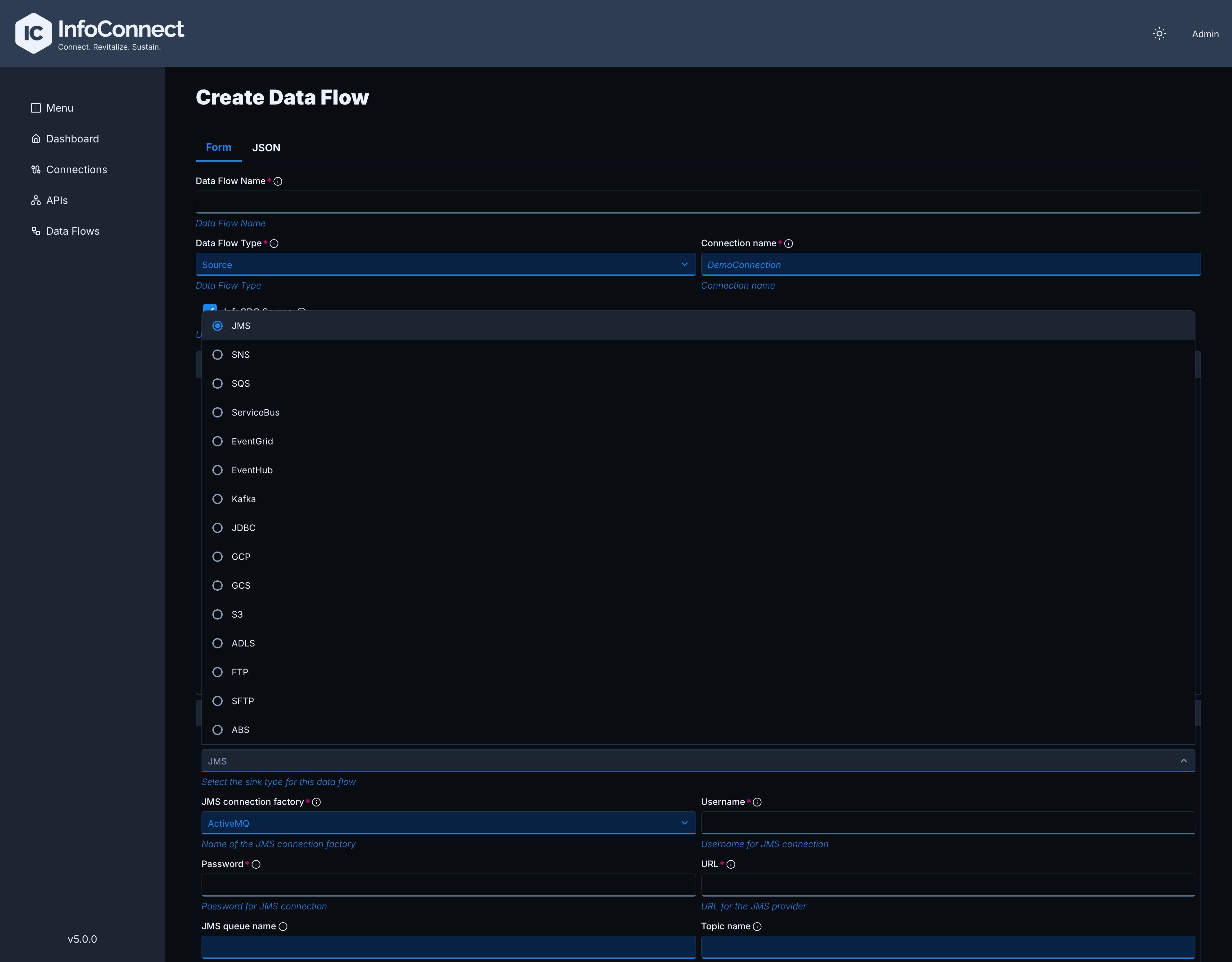
The UI offers all sink types for both directions, but the Hub accepts only some of them for Inbound Data Flows:
| Sink Type | Outbound | Inbound |
|---|---|---|
| JMS, SQS, ServiceBus, Kafka, EventHub, GCP | Yes | Yes |
| SNS, EventGrid, JDBC, GCS, S3, ADLS, FTP, SFTP, ABS | Yes | No (outbound only) |
If you use an outbound-only sink type in an Inbound Data Flow, the Hub rejects the Data Flow with an error, for example JDBC poller not support Sink type.
Outbound Data Flow
An Outbound Data Flow listens for changes in an IBM i data queue and sends them to an external system. Configure these settings:
- Main fields: Set Data Flow Type to
Source, select the Native Connection to your IBM i and set InfoCDC Source. - Data Queue Settings: Enter the Source data queue name and Library name to monitor, plus the other settings described above.
- Sink Settings: Select the Sink Type (for example
JDBC,SNS,SQS,Kafka,S3orSFTP) and fill in the required properties for that type, such as connection URL, topic name or credentials. - DLQ Settings and Transformer: Optional.

Sample JSON configuration for a Data Flow
{
  "pollerName": "CDC2RDS",
  "dqName": "DQNAME",
  "libraryName": "INFOCDCDTA",
  "dqFormatFileName": "FMTFILE",
  "dqFormatFileLibrary": "INFOCDCDTA",
  "connectionName": "NATIVE",
  "infoCDCConfigured": true,
  "dqWaitTime": 30,
  "sinkType": "JDBC",
  "sinkTypeProperties": {
    "jdbcProperties": {
      "driverClassName": "com.mysql.cj.jdbc.Driver",
      "maxPoolSize": 10,
      "minPoolSize": 3,
      "jdbcUrl": "jdbc:mysql://my-database-server:3306/testdb?useSSL=false&serverTimezone=UTC&allowPublicKeyRetrieval=true",
      "username": "encrypted-user-name",
      "password": "encrypted-password"
    }
  },
  "pollerType": "Source",
  "threadCount": "5"
}
In the Admin API, a Data Flow is called a DQ poller: pollerType Source is an Outbound and Sink an Inbound Data Flow. You can also create an Outbound Data Flow with the Admin API, see API Reference.
Inbound Data Flow
An Inbound Data Flow listens for messages from an external system and places them into an IBM i data queue. The configuration is the reverse of an Outbound Data Flow:
- Set Data Flow Type to
Sink. - Configure the external system in Sink Settings (for example
Kafka). - Enter the target data queue in Sink data queue name.
Inbound Data Flows support only the sink types JMS, SQS, ServiceBus, Kafka, EventHub and GCP, see Sink types. For a GCP sink, the field Subscription is shown for Inbound Data Flows and Topic for Outbound Data Flows.

You can also create an Inbound Data Flow with the Admin API, see API Reference.