File Sinks for Data Flows
Overview
File sinks deliver the records of an outbound Data Flow as files instead of messages. InfoConnect Hub 5.0.0 reads change records from an IBM i data queue (for example an InfoCDC replication queue), collects them for each source table, writes them as CSV, JSON or Parquet files, and uploads the files to a storage location.
These file sinks are supported:
| Sink | sinkType |
Properties object in sinkTypeProperties |
|---|---|---|
| Amazon S3 | S3 |
s3Properties |
| Azure Data Lake Storage (ADLS) | ADLS |
adlsProperties |
| Azure Blob Storage | ABS |
blobStorageProperties |
| Google Cloud Storage (GCS) | GCS |
gcsProperties |
| FTP | FTP |
ftpProperties |
| SFTP | SFTP |
sftpProperties |
In the web UI you configure a Data Flow. In the Admin API the same object is a DQ poller (endpoints under /admin/dqpollers), and an outbound Data Flow has pollerType Source. This page uses "Data Flow" and shows the API names where they matter. For states and recovery, see Data Flow States and Errors.
Requirements
- The Data Flow is outbound. File sinks reject inbound Data Flows (
pollerTypeSink). To publish to Kafka, SQS, Event Hub or other brokers, see Dynamic Data Publishing. - The destination exists: the bucket or container for S3, ADLS, Azure Blob Storage and GCS, and the base folder for FTP and SFTP. The Hub does not create buckets.
- The credentials allow the Hub to write to the destination, and the Hub server can reach it.
- Secrets (passwords, access keys, account keys) are sent encrypted. See Encrypting credentials.
How file sinks work
All file sinks share the same file engine and the same rules.
One buffer per source table
The Hub keeps a separate in-memory buffer and a separate series of files for each source table in the data queue. The table is identified by the SYSTBLSCM (schema) and SYSTBLNAM (table) values of each record. Records of different tables are never mixed in one file.
File names
Every file is named as follows:
| Part | Description |
|---|---|
<pollerName> |
The Data Flow name. It may contain only letters, digits and hyphens. |
<SCHEMA>, <TABLE> |
Library (schema) and name of the source table. |
<timestamp> |
Time the file series started, in the format yyyyMMdd'T'HHmmssSSS. |
_<n> |
Counter added to the second and later files written within the same time window. |
<ext> |
csv, json or parquet. |
Example: orders-to-ftp_HUBTESTS_PLAYERS_20260927T023649000.csv
When a file is written
A file is written when either limit is reached:
- The buffered data reaches
maxFileSizeKBkilobytes. flushIntervalSecondsseconds have passed since the last file was written.
The Hub checks the limits when a new batch for that table arrives. A table that receives no new records is not flushed by a timer. When you stop the Data Flow, the Hub writes all data that is still buffered.
If both values are 0 (the default), every batch read from the data queue becomes its own file.
Data formats
dataFormat |
Content of a file |
|---|---|
csv |
A header row with the column names, followed by one row per record. |
json |
One JSON array with one object per record. |
parquet |
A Parquet file. compressionType selects the compression. |
dataFormat is not case-sensitive. For parquet, compressionType is required and must be uncompressed or snappy. For csv and json, the Hub ignores compressionType.
Folder layout
The dynamicDataProcessing flag controls where files are placed. In the UI it is the Dynamic data publishing checkbox (off by default). For the same flag on brokers, see Dynamic Data Publishing.
- Off: all files of the Data Flow go into one folder named after the Data Flow.
- On: every source table gets its own folder.
| Sink | Off | On |
|---|---|---|
| S3 | <pollerName>/<file> |
<pollerName>/<SCHEMA>/<TABLE>/<file> |
| ADLS | Not documented, see the note below | <storagePath>/<pollerName>/<SCHEMA>/<TABLE>/<file> |
| Azure Blob Storage | <storagePath>/<pollerName>/<file> |
<storagePath>/<pollerName>/<SCHEMA>/<TABLE>/<file> |
| GCS | <pollerName>/<file> |
<pollerName>/<SCHEMA>/<TABLE>/<file> |
On S3, ADLS, Azure Blob Storage and GCS, underscores in library or table names create extra sub-folders.
| FTP, SFTP | <destinationPath>/<pollerName>/<file> | <destinationPath>/<pollerName>_<SCHEMA>_<TABLE>/<file> |
For S3, Azure Blob Storage and GCS, the bucket or container is the top level, so the paths are object names inside it. On FTP and SFTP, the Hub creates missing sub-folders.
Note
For ADLS, only the layout with Dynamic data publishing on is documented.
Configuring a file sink in the UI
- Open Data Flows and click Create Data Flow.
- Select Outbound and a Native connection.
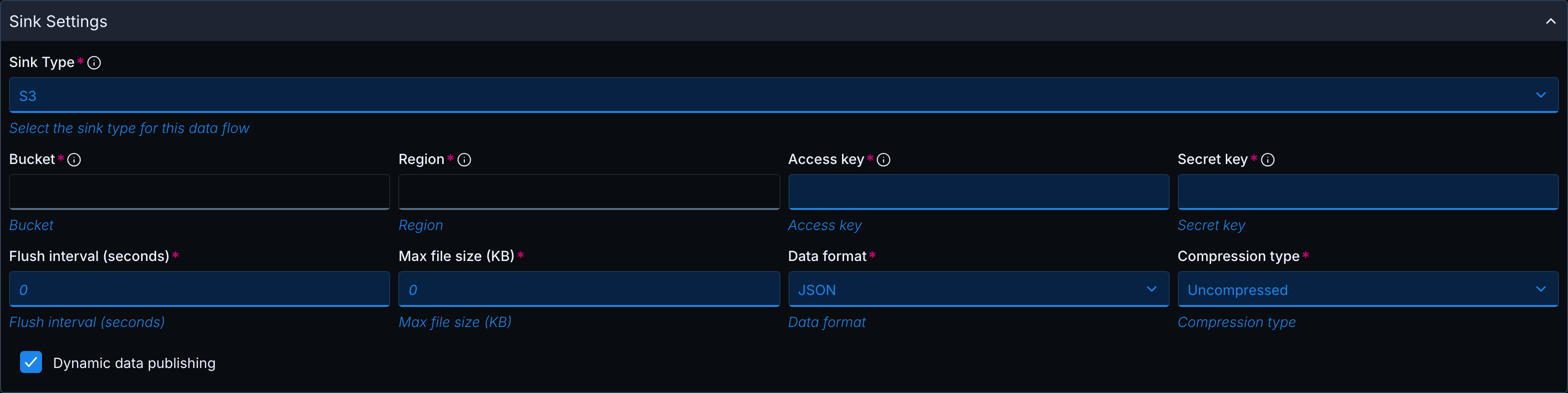
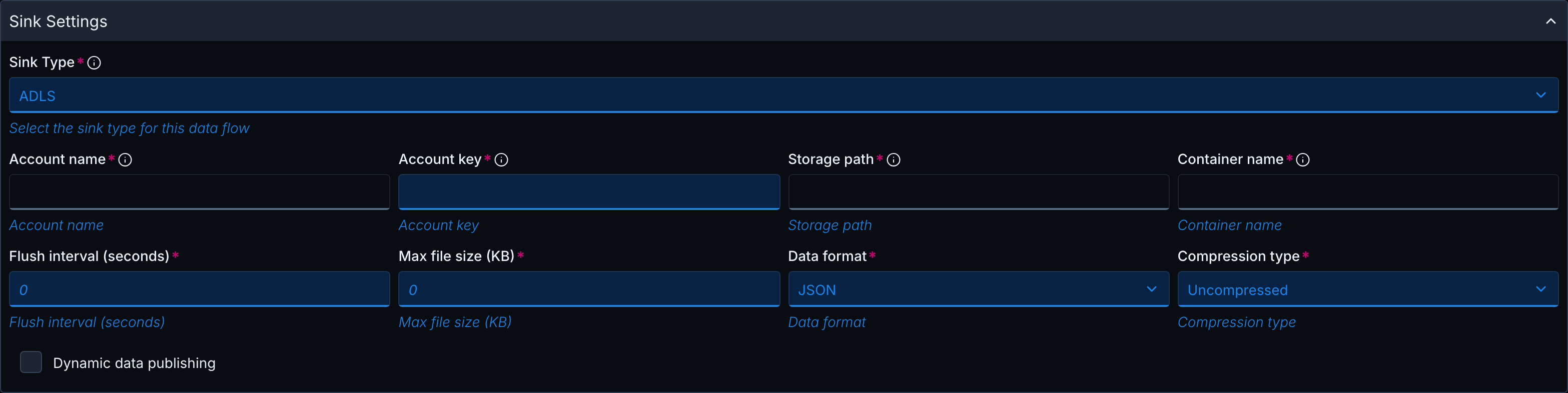
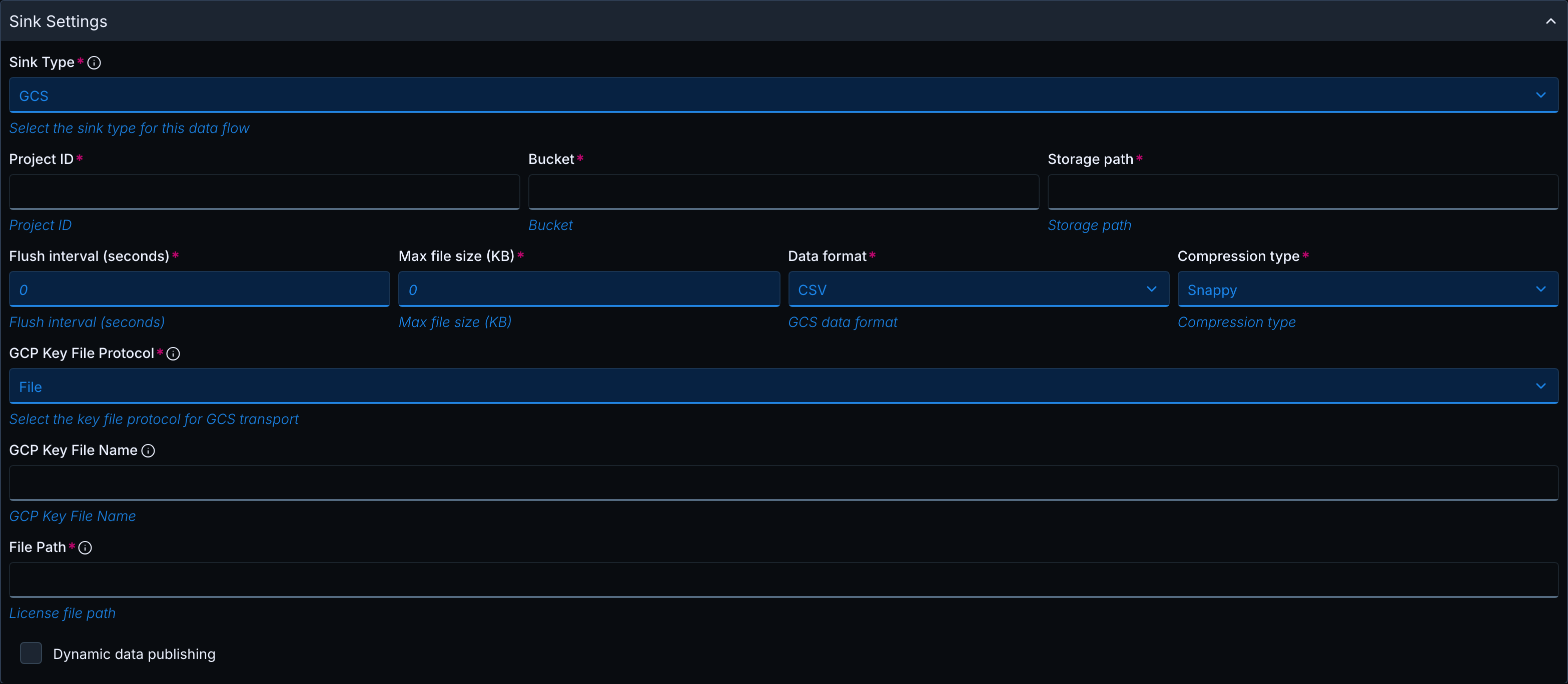
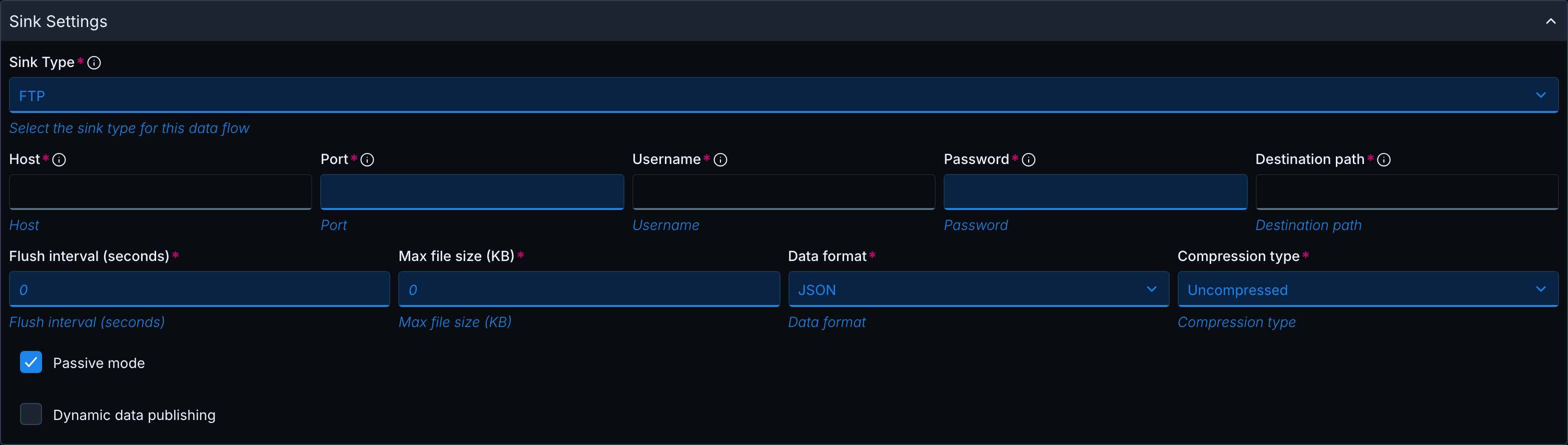
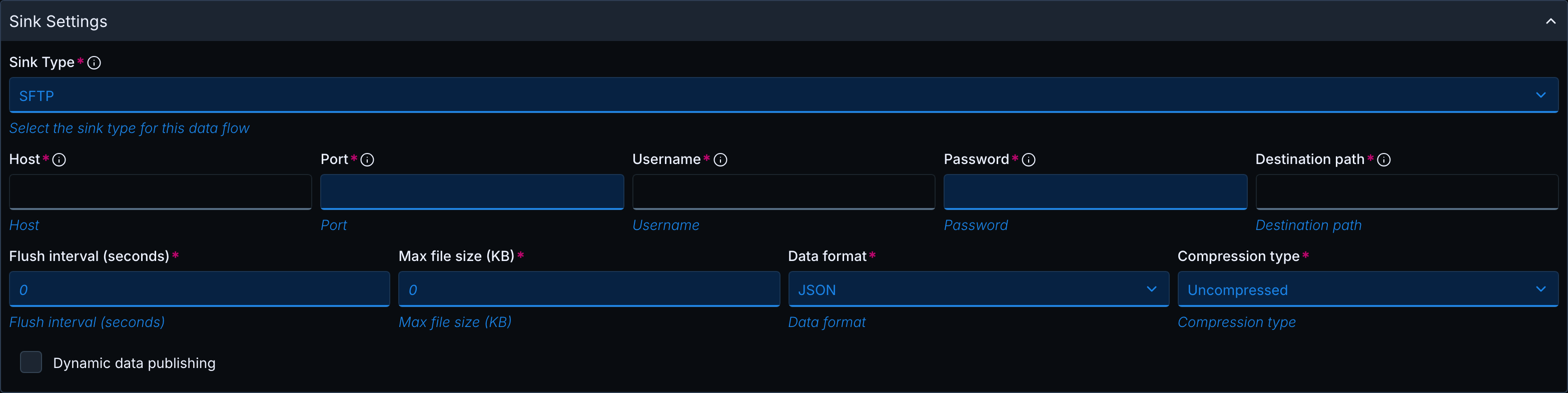
- In Sink Settings, select the file sink in the Sink Type list: S3, ADLS, ABS, GCS, FTP or SFTP.
- Fill in the sink fields described below.
- Click Submit. The Data Flow starts as Inactive.
- On the Update Data Flow page, click Start.
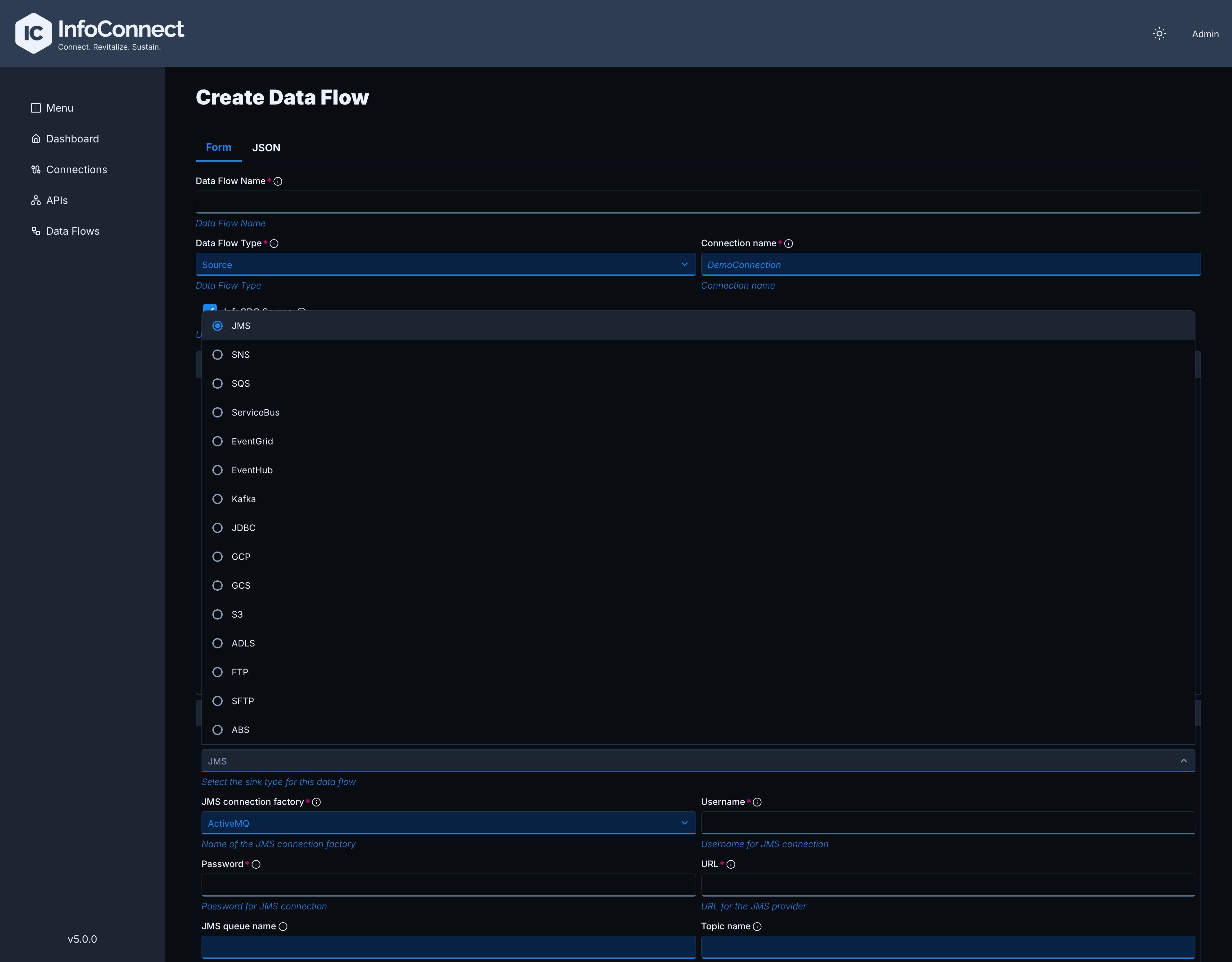
The UI encrypts password fields automatically. When you edit a Data Flow, these fields are empty. Leave them empty to keep the stored value.
Fields shown for every file sink
| Label | Default | Description |
|---|---|---|
| Flush interval (seconds) | 0 |
flushIntervalSeconds. Must be 0 or greater. |
| Max file size (KB) | 0 |
maxFileSizeKB. Must be 0 or greater. |
| Data format | JSON | CSV, JSON or Parquet. For GCS the default is CSV. |
| Compression type | Uncompressed | Snappy or Uncompressed. Applies to Parquet only. For GCS the default is Snappy. |
| Dynamic data publishing | Off | dynamicDataProcessing. |
Fields specific to each sink
| Sink | Fields |
|---|---|
| S3 | Bucket, Region, Access key, Secret key |
| ADLS, ABS | Account name, Account key, Storage path, Container name |
| GCS | Project ID, Bucket, Storage path, GCP Key File Protocol (AWS S3, File, FTP, HTTP, HTTPS, Azure Storage, None; default File), GCP Key File Name, and the fields of the selected protocol, for example File Path |
| FTP | Host, Port (default 21), Username, Password, Destination path, Passive mode (on by default) |
| SFTP | Host, Port (default 22), Username, Password, Destination path |
Key-only authentication (privateKeyPath without password) and strictHostKeyChecking can be set only with the Admin API. The web form requires a password and drops these two fields when the Data Flow is saved from the form.
Admin API reference
| Action | Request |
|---|---|
| Create a Data Flow | POST /admin/dqpollers |
| Update a Data Flow | PUT /admin/dqpollers/{pollerName} |
| Start a Data Flow | POST /admin/dqpollers/{pollerName}/start |
| Stop a Data Flow | POST /admin/dqpollers/{pollerName}/stop |
A Data Flow created without status is INACTIVE. Send "status": "ACTIVE" to start it immediately. The sink settings go into the sinkTypeProperties object of the request body. See Examples.
Encrypting credentials
Encrypt each secret with POST /admin/encryption, see Encrypting secrets. The request body is a JSON object with the plain value:
The response contains the encrypted value under the same key:
Use the encrypted value in the Data Flow definition. User names (FTP, SFTP) and the Azure account name are not encrypted.
Fields common to all file sinks
| Field | Required | Description | Validation messages |
|---|---|---|---|
flushIntervalSeconds |
No | Maximum time between files, in seconds. Default 0. |
|
maxFileSizeKB |
No | Maximum buffered size before a file is written, in KB. Default 0. |
|
dataFormat |
Yes | csv, json or parquet. |
Data Format required, Data Format Must be any of these: [csv, json, parquet] |
compressionType |
For parquet |
uncompressed or snappy. |
Compression Type required when using Parquet format, Compression Type Must be any of these: [uncompressed, snappy] |
dynamicDataProcessing |
No | Create one folder per source table. Default false. |
Amazon S3 (s3Properties)
| Field | Required | Description | Validation messages |
|---|---|---|---|
bucket |
Yes | Name of an existing bucket. | S3 Bucket required |
accessKey |
Yes | AWS access key, encrypted. | S3 Access Key required |
secretKey |
Yes | AWS secret key, encrypted. | S3 Secret Key required |
region |
Yes (UI) | AWS region of the bucket, for example us-east-2. |
Azure Data Lake Storage (adlsProperties)
| Field | Required | Description | Validation messages |
|---|---|---|---|
accountName |
Yes | Storage account name. | ADLS Account Name required |
accountKey |
Yes | Storage account key, encrypted. | ADLS Account Key required |
storagePath |
Yes | Base path inside the container. Must not start with /. |
ADLS Storage Path required, ADLS Storage Path should not start with leading '/' (forward slash) |
containerName |
Yes | Name of an existing container. | ADLS Container required |
Azure Blob Storage (blobStorageProperties)
The sinkType is ABS. The properties object is named blobStorageProperties. An existing blob with the same name is overwritten.
| Field | Required | Description | Validation messages |
|---|---|---|---|
accountName |
Yes | Storage account name, plain text. The Hub connects to https://<accountName>.blob.core.windows.net. |
Blob Storage Account Name required |
accountKey |
Yes | Storage account key, encrypted. | Blob Storage Account Key required |
containerName |
Yes | Name of an existing container. | Blob Container required |
storagePath |
Yes | Base path inside the container. Must not start with /. |
Blob Storage Path required, Blob Storage Path should not start with leading '/' (forward slash) |
Google Cloud Storage (gcsProperties)
| Field | Required | Description | Validation messages |
|---|---|---|---|
projectId |
Yes | Google Cloud project that owns the bucket. | GCS Project Id required |
bucket |
Yes | Name of an existing bucket. | GCS Bucket required |
storagePath |
Yes | Must not start with /. In 5.0.0 the value is validated but not used: objects are written to <pollerName>/... at the top of the bucket. |
GCS Storage Path required, GCS Storage Path should not start with leading '/' (forward slash) |
gcsKeyFileConfig |
No | Location of the service account key file. If omitted, the Hub uses the Application Default Credentials of its environment. |
gcsKeyFileConfig tells the Hub where to read the Google service account JSON key. The key file is not part of the request and is not encrypted. The Hub reads it when the Data Flow starts.
Field in gcsKeyFileConfig |
Required | Description | Validation messages |
|---|---|---|---|
gcpKeyFileProtocol |
Yes | Transport used to read the file, for example FILE. |
GCS key file protocol is required |
gcpKeyFileName |
Yes | Name of the key file. | Name of GCS key file is required |
FILE.filePath |
For FILE |
Folder on the Hub server that contains the key file. |
FTP (ftpProperties)
| Field | Required | Description | Validation messages |
|---|---|---|---|
host |
Yes | Server host name. | FTP Host required |
port |
No | Default 21. |
FTP Port required, FTP Port must be between 1 and 65535 |
username |
Yes | User name, plain text. | FTP Username required |
password |
Yes | Password, encrypted. | FTP Password required |
destinationPath |
Yes | Existing base folder on the server. | FTP Destination Path required |
passiveMode |
No | true (default) uses passive mode, false uses active mode. |
Note
FTP transfers credentials and data without encryption. Use SFTP when the connection must be protected.
SFTP (sftpProperties)
| Field | Required | Description | Validation messages |
|---|---|---|---|
host |
Yes | Server host name. | SFTP Host required |
port |
No | Default 22. |
SFTP Port required, SFTP Port must be between 1 and 65535 |
username |
Yes | User name, plain text. | SFTP Username required |
password |
password or privateKeyPath |
Password, encrypted. | Either SFTP Password or Private Key Path must be provided |
privateKeyPath |
password or privateKeyPath |
Path of a private key file on the Hub server. Must contain / or \. Use a key file without a passphrase. Set this field with the Admin API. |
Private Key Path must be a valid file path |
destinationPath |
Yes | Existing base folder on the server. Must start with /, or be a Windows path such as C:\path. |
SFTP Destination Path required, SFTP Destination Path should be a valid Unix path (starts with '/') or Windows path (e.g., 'C:\path') |
strictHostKeyChecking |
No | true turns host key checking on, false (default) turns it off. Set this field with the Admin API. |
Examples
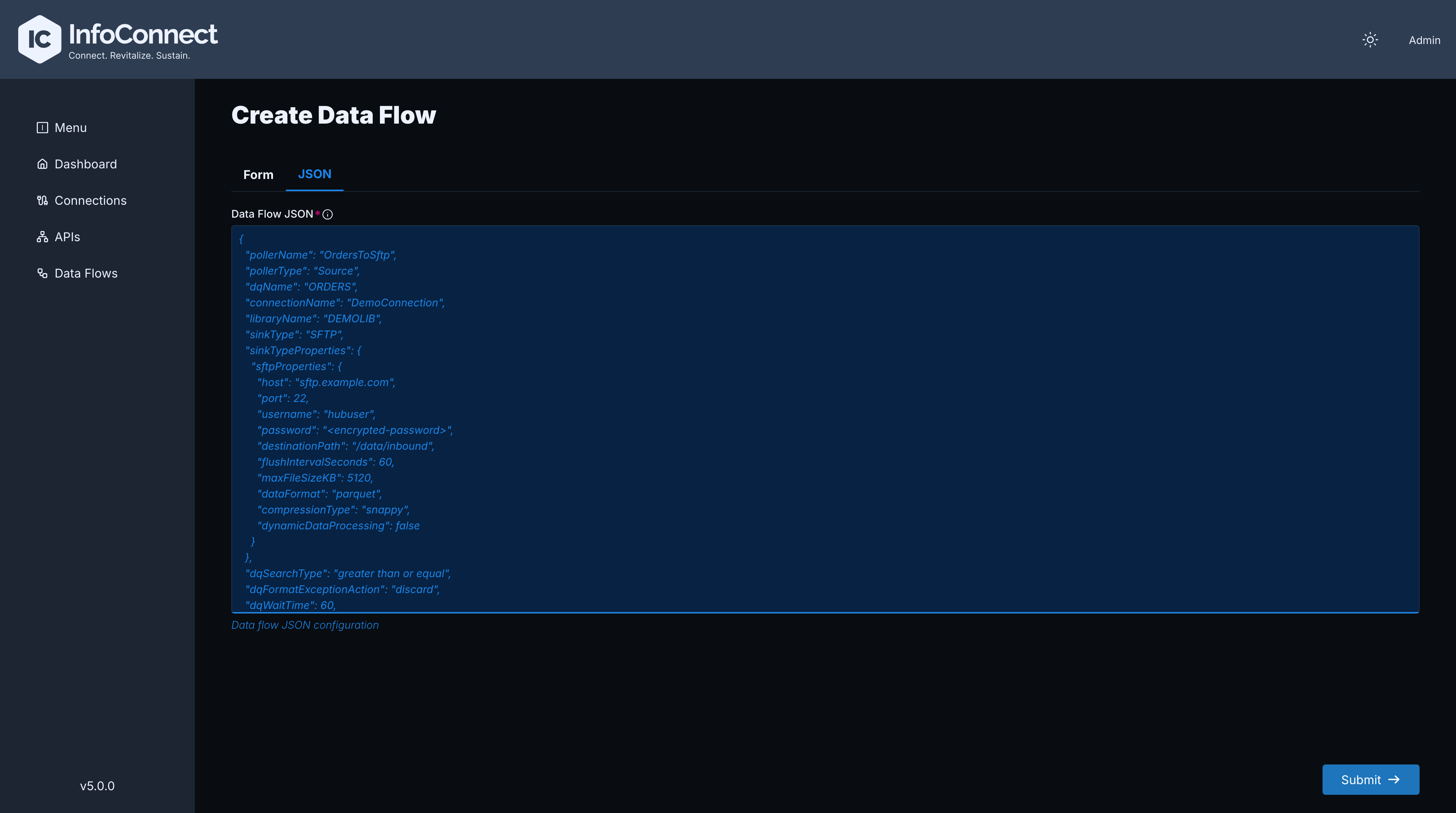
All examples use the same request body. Only sinkType and sinkTypeProperties change, so the sink examples that follow show only these two fields.
Sample JSON for a complete request body (S3)
{
  "pollerName": "orders-to-s3",
  "connectionName": "ibmi-prod",
  "pollerType": "Source",
  "dqName": "CDCDQ1581",
  "libraryName": "INFOCDCDTA",
  "infoCDCConfigured": true,
  "status": "ACTIVE",
  "sinkType": "S3",
  "sinkTypeProperties": {
    "s3Properties": {
      "bucket": "ibmi-replication",
      "accessKey": "<encrypted-access-key>",
      "secretKey": "<encrypted-secret-key>",
      "region": "us-east-2",
      "flushIntervalSeconds": 120,
      "maxFileSizeKB": 5120,
      "dataFormat": "parquet",
      "compressionType": "snappy",
      "dynamicDataProcessing": true
    }
  }
}
Amazon S3
A record from table PLAYERS in library HUBTESTS produces the object orders-to-s3/HUBTESTS/PLAYERS/orders-to-s3_HUBTESTS_PLAYERS_20260927T023649000.parquet.
{
  "sinkType": "S3",
  "sinkTypeProperties": {
    "s3Properties": {
      "bucket": "ibmi-replication",
      "accessKey": "<encrypted-access-key>",
      "secretKey": "<encrypted-secret-key>",
      "region": "us-east-2",
      "flushIntervalSeconds": 120,
      "maxFileSizeKB": 5120,
      "dataFormat": "parquet",
      "compressionType": "snappy",
      "dynamicDataProcessing": true
    }
  }
}
Azure Data Lake Storage
{
  "sinkType": "ADLS",
  "sinkTypeProperties": {
    "adlsProperties": {
      "accountName": "mystorageacct",
      "accountKey": "<encrypted-account-key>",
      "storagePath": "events",
      "containerName": "ibmi-replication",
      "flushIntervalSeconds": 120,
      "maxFileSizeKB": 5120,
      "dataFormat": "json",
      "compressionType": "uncompressed",
      "dynamicDataProcessing": true
    }
  }
}
Azure Blob Storage
{
  "sinkType": "ABS",
  "sinkTypeProperties": {
    "blobStorageProperties": {
      "accountName": "mystorageaccount",
      "accountKey": "<encrypted-account-key>",
      "containerName": "hub-data",
      "storagePath": "ibmi/replication",
      "flushIntervalSeconds": 60,
      "maxFileSizeKB": 10240,
      "dataFormat": "parquet",
      "compressionType": "snappy",
      "dynamicDataProcessing": true
    }
  }
}
Google Cloud Storage
{
  "sinkType": "GCS",
  "sinkTypeProperties": {
    "gcsProperties": {
      "projectId": "my-gcp-project",
      "bucket": "ibmi-replication",
      "storagePath": "events",
      "gcsKeyFileConfig": {
        "gcpKeyFileProtocol": "FILE",
        "gcpKeyFileName": "gcs-service-account.json",
        "FILE": {
          "filePath": "/opt/infoconnect/keys"
        }
      },
      "flushIntervalSeconds": 60,
      "maxFileSizeKB": 10240,
      "dataFormat": "parquet",
      "compressionType": "snappy",
      "dynamicDataProcessing": false
    }
  }
}
FTP
With Dynamic data publishing on, the files for table PLAYERS in library HUBTESTS go to /inbound/ibmi/orders-to-ftp_HUBTESTS_PLAYERS/.
{
  "sinkType": "FTP",
  "sinkTypeProperties": {
    "ftpProperties": {
      "host": "ftp.example.com",
      "port": 21,
      "username": "hubuser",
      "password": "<encrypted-password>",
      "destinationPath": "/inbound/ibmi",
      "passiveMode": true,
      "flushIntervalSeconds": 60,
      "maxFileSizeKB": 5120,
      "dataFormat": "csv",
      "dynamicDataProcessing": true
    }
  }
}
SFTP
To authenticate with a key instead of a password, omit password and add "privateKeyPath": "/opt/infoconnect/keys/id_rsa".
{
  "sinkType": "SFTP",
  "sinkTypeProperties": {
    "sftpProperties": {
      "host": "sftp.example.com",
      "port": 22,
      "username": "hubuser",
      "password": "<encrypted-password>",
      "destinationPath": "/data/inbound",
      "flushIntervalSeconds": 60,
      "maxFileSizeKB": 5120,
      "dataFormat": "parquet",
      "compressionType": "snappy",
      "dynamicDataProcessing": false
    }
  }
}
Failure behavior
Checks at creation and startup
When a Data Flow is created, updated or loaded at Hub startup, the Hub connects to the destination and checks that it is usable. It checks the bucket or container (S3, ADLS, Azure Blob Storage, GCS) or the login and destinationPath (FTP, SFTP).
If the check fails, the Hub saves the Data Flow with the status INVALID and stores the error text in its exception field. Read it with GET /admin/dqpollers/{pollerName}. Typical messages:
| Sink | Example message |
|---|---|
| S3 | Bucket '<bucket>' does not exist or access denied: ... |
| ADLS, Azure Blob Storage | The specified container was not found: <container> |
| ADLS, Azure Blob Storage | Authentication failed: Please check your account name and account key. |
| GCS | The specified GCS bucket was not found: <bucket> |
| GCS | Authentication failed or access denied for bucket '<bucket>' |
| GCS | Bucket '<bucket>' does not exist or access denied |
| GCS | Failed to load GCS service account key file: ... |
| FTP | FTP login failed for user '<user>' on server '<host>:21' |
| FTP, SFTP | Destination path '<path>' does not exist ... |
Correct the configuration and update the Data Flow with PUT /admin/dqpollers/{pollerName}.
Errors while uploading
| Situation | Behavior |
|---|---|
| Temporary network or service error | The Hub retries the upload. See Automatic recovery. |
| Any other error, for example rejected credentials or a missing folder | The Data Flow becomes FAILED, and the batch that could not be written is saved to the failed-records folder. See Failed-record storage. |
For the meaning of the INVALID and FAILED states and how to recover, see Data Flow States and Errors.