IBM i Data Replication
Overview
InfoConnect Hub 3.0.0 and later replicates IBM i data directly to JDBC-compliant databases, such as MySQL, PostgreSQL and SQL Server. No messaging or event middleware is required. The Hub works directly with InfoCDC, the lightweight Change Data Capture (CDC) agent for IBM i.
Use this approach to replicate IBM i tables to a database when you have no complex integration requirements and no messaging or event infrastructure. If a message broker is part of your architecture, see Example: DB2 Replication with InfoCDC and the AWS Stack.
In the web interface the replication job is a Data Flow. In the Admin API and in JSON it is a DQ poller (/admin/dqpollers) with pollerType set to Source. This page uses the term Data Flow.
How it works
The following diagram shows the replication flow:
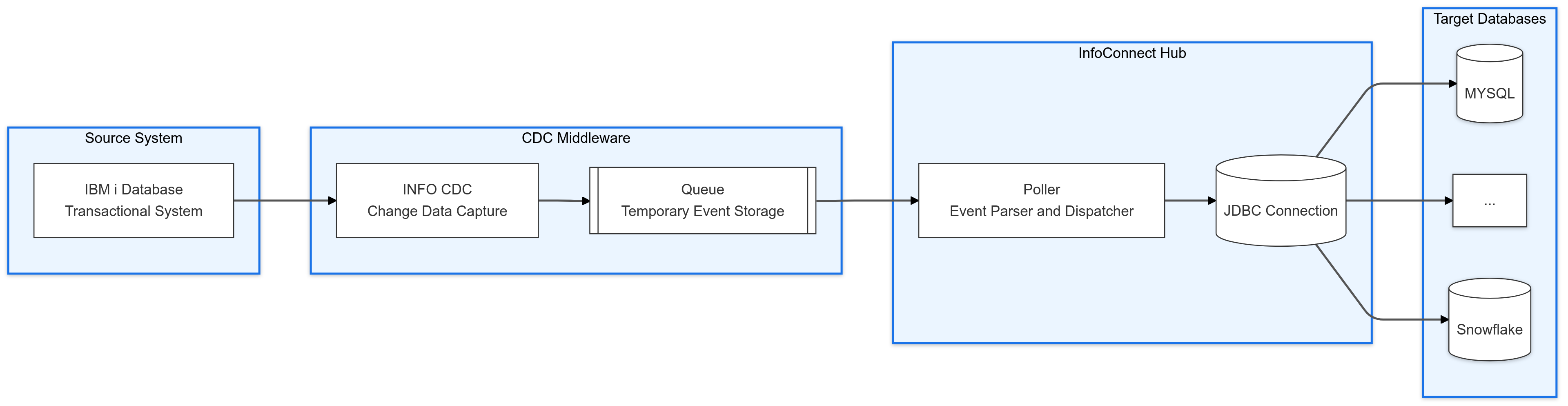
Direct replication combines InfoCDC, the Hub data queue (DQ) poller and a JDBC sink:
- Data capture. InfoCDC captures changes to IBM i DB2 tables and sends them to replication data queues.
- Data queue polling. The Hub listens to the data queues for new messages. When a change event arrives, the Hub converts it from the internal fixed-position message format into JSON and determines the key values.
- Direct database integration. The Hub writes the change events to the target database:
- The Hub checks whether the target table exists and, if needed, creates it according to the InfoCDC table and key configuration.
- The Hub writes the change events (insert, update, delete) directly to the target database through JDBC. An update that matches no row in the target table is written as an insert.
- No messages are routed through additional middleware, such as brokers or event platforms.
InfoCDC as a source
An InfoCDC Data Flow is an outbound Data Flow (pollerType = Source) that reads an InfoCDC replication data queue, for example CDCDQ1581 in library INFOCDCDTA. It is enabled with the infoCDCConfigured property. In the web interface it is the InfoCDC Source checkbox in the main configuration of the Data Flow (default: selected). Through the API the default is false, so set "infoCDCConfigured": true explicitly.
When the option is enabled, the Hub does the following for each message read from the data queue:
- Reads the InfoCDC message header: the source table name (
SYSTBLNAM), the table library (SYSTBLSCM), the format file name (SYSFTBLNAM) and the format file library (SYSFTBLSCM). - If the Data Flow's
dqFormatFileNameanddqFormatFileLibraryareauto, uses the format file named in the message to convert the fixed-position record into JSON. - Retrieves the key columns configured in InfoCDC for the table (once per table, the result is cached). These columns are used to identify the row for updates and deletes, and to keep only the latest event per row.
Without this option the key is taken from the data queue key string.
Each JSON message carries EVENTTYP (INSERT, UPDATE, DELETE or SNAPSHOT), SYSTBLNAM, SYSTBLSCM, SYSFTBLNAM, SYSFTBLSCM, JRNSEQNO and the table columns. For columns that can be null, an additional <COLUMN>_NULLIND indicator is included (1 = null).
Format file default: auto
dqFormatFileName and dqFormatFileLibrary default to auto. If the fields are omitted or null, they default to auto; the web interface sends null for blank format file fields. An empty string in the Admin API means no format file. With auto, the format file name and library are read from each InfoCDC message, so one Data Flow can read changes of many tables, each with its own record layout.
auto is resolved only when infoCDCConfigured is true. To read an InfoCDC queue, leave the format file fields blank (or auto) and select InfoCDC Source. To use one fixed format file for all messages, enter its name and library explicitly.
Note
The InfoCDC replication workflow on IBM i (journal listener and data queue builder jobs) runs independently of the Hub Data Flow. Starting a Data Flow in the Hub does not start it.
Configuration example
To create the Data Flow in the web interface:
- In the navigation bar, select Data Flows.
- Select Create Data Flow.
-
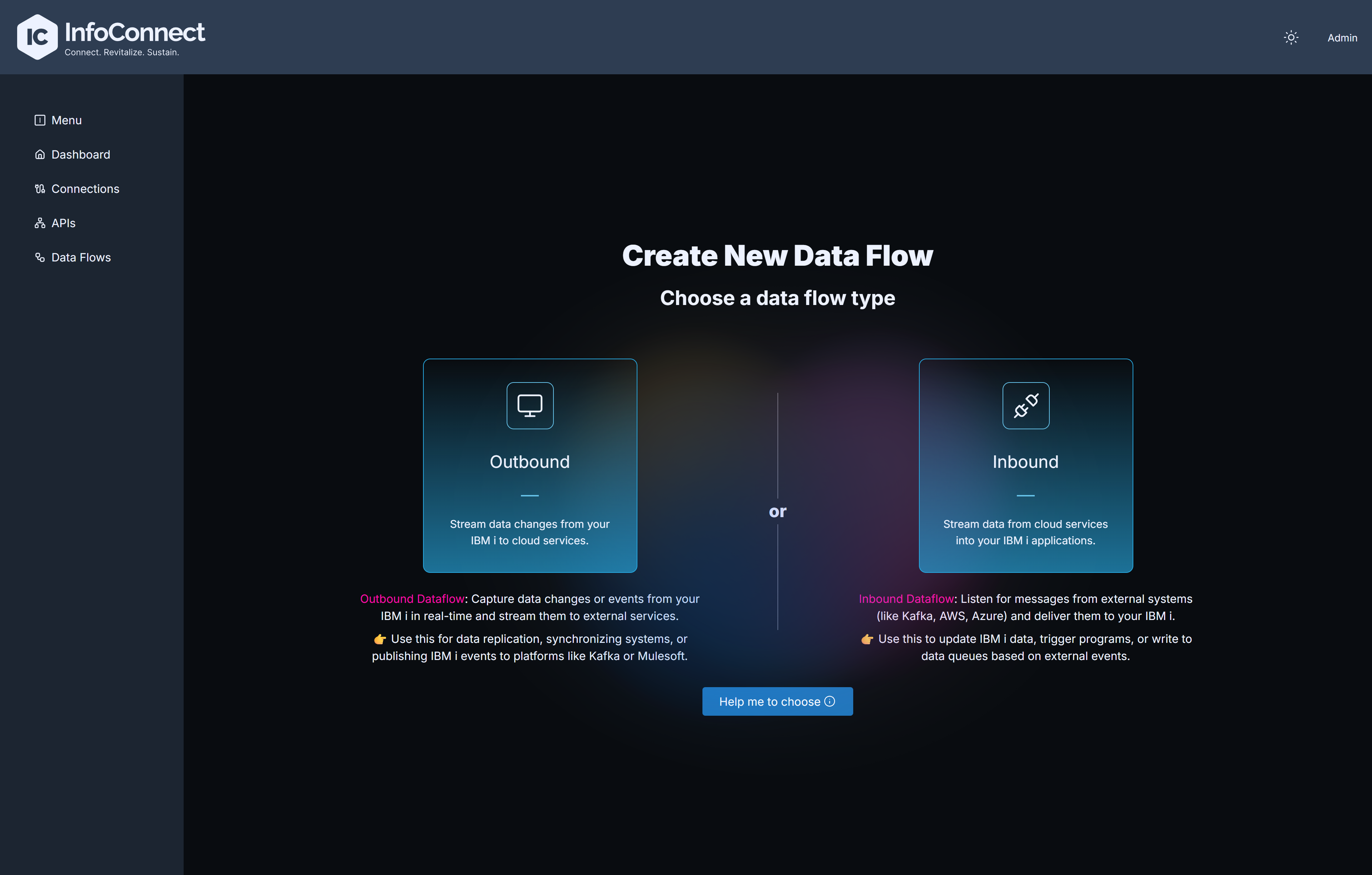
Choose the direction Outbound (IBM i to cloud services).
-
Fill in the form fields, or paste the JSON into the JSON tab.
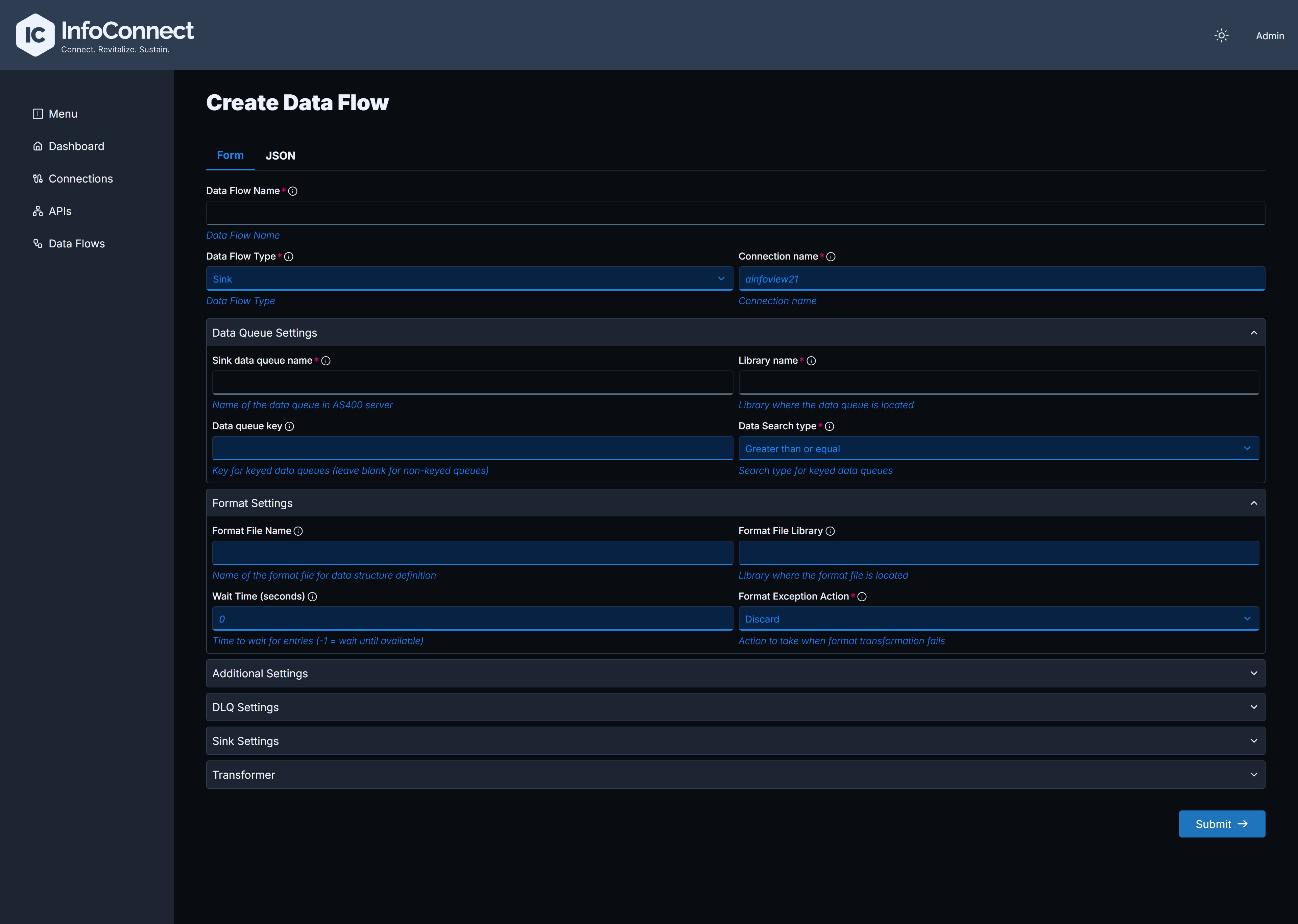
To create the Data Flow through the Admin API, send the request to POST /admin/dqpollers.
Keep the following in mind:
connectionNameis required. It is the name of the IBM i connection the Data Flow uses.- The Data Flow name (
pollerName) may contain only letters, digits and the-character. Underscores and other special characters are not allowed. - If
statusis not specified, the Data Flow is created asINACTIVE(this is also the case for Data Flows created in the web interface). Start it with the Start button, withPOST /admin/dqpollers/{pollerName}/start, or pass"status": "ACTIVE"when creating it. jdbcProperties.usernameandjdbcProperties.passwordmust be encrypted values. Encrypt them withPOST /admin/encryption, passing for example{"password": "plain-text-password"}; the response contains the encrypted value under the same key. The web interface encrypts these fields automatically, see Encrypting secrets.batchSizeis the number of messages the Data Flow reads and writes in one batch. Use a value of 1 or more. A value of 0 or less reads one message per cycle, which is slow for a busy queue.
For FAILED and INVALID Data Flows and how to recover them, see Data Flow States and Errors.
Default mode: automatic table creation
Sample JSON configuration for a Data Flow
{
    "pollerName": "db-poller",
    "connectionName": "ibmi-prod",
    "pollerType": "Source",
    "dqName": "CDCDQ1581",
    "libraryName": "INFOCDCDEM",
    "infoCDCConfigured": true,
    "dqFormatFileName": "auto",
    "dqFormatFileLibrary": "auto",
    "dqFormatExceptionAction": "place back into queue",
    "batchSize": 100,
    "threadCount": 20,
    "status": "ACTIVE",
    "sinkType": "JDBC",
    "sinkTypeProperties": {
        "jdbcProperties": {
            "driverClassName": "com.mysql.cj.jdbc.Driver",
            "maxPoolSize": 20,
            "minPoolSize": 3,
            "jdbcUrl": "jdbc:mysql://localhost:3306/testDB",
            "username": "GtflCbDpwstp9hDlUl2g3av81i38WCYnVtG452GN6gDjJTaWmmhgexwT/A==",
            "password": "fkzxAm+GBqLYDZTAMsSy1HG+Vi0I9CgDOBo18ADbuYbrJWJ3itFJsZzzqPtS/p0="
        }
    }
}
The JDBC sink properties are set in sinkTypeProperties.jdbcProperties:
| Property | Description |
|---|---|
driverClassName |
JDBC driver class name, required. See Supported databases and drivers. |
jdbcUrl |
JDBC connection URL of the target database, required. |
username, password |
Encrypted credentials, required. |
maxPoolSize, minPoolSize |
Connection pool size, required. If they are omitted, the Data Flow becomes INVALID. A value of 0 or less is replaced by the default (10 for maxPoolSize, 2 for minPoolSize). |
dynamicDataPublishing |
Optional, default false. See Replicating many tables with one Data Flow. |
insertSql, updateSql, deleteSql, selectSql |
Optional custom SQL. See Custom SQL templates. |
If the driver is not found, the credentials are rejected, or the JDBC URL is not valid, the Data Flow becomes INVALID.
How the JDBC sink writes data
This section describes the default mode, that is, when no custom SQL is configured.
Batching
The Data Flow reads up to batchSize messages per cycle and writes the whole batch through one database connection in a single transaction. The batch is committed or rolled back as a unit.
Inside one batch only the latest event for each row key is applied (the event with the highest JRNSEQNO). The row key is the table together with the values of its key columns.
Supported events are INSERT, SNAPSHOT (written as an insert), UPDATE and DELETE. An UPDATE that matches no row in the target table is written as an insert. Events of any other type are skipped.
Automatic table creation
When the first message for a table arrives, the Hub reads the InfoCDC format file and creates the target table if it does not exist (CREATE TABLE IF NOT EXISTS; on SQL Server a guarded IF NOT EXISTS ... CREATE TABLE). The target table is named after the IBM i table system name (SYSTBLNAM), without the library, and is created in the default schema of the JDBC URL.
IBM i column types are mapped as follows:
| IBM i type | Target type |
|---|---|
| Binary 1 byte | TINYINT |
| Binary 2 bytes | SMALLINT |
| Binary 4 bytes | INTEGER |
| Binary 8 bytes | BIGINT |
| Byte array | VARBINARY(n) |
| Date | DATE |
| Time | TIME |
| Timestamp | TIMESTAMP |
| Float (4 bytes) | REAL |
| Float (8 bytes) | DOUBLE |
| Packed decimal, zoned decimal | DECIMAL(n, 0) (the scale is always 0) |
| Text, variable-length text | VARCHAR(n) |
Other IBM i data types are not supported for automatic table creation.
Right after creating a table, the Hub creates a non-unique index named primary_key on the table's key columns. If the table has no key columns, no index is created. No primary key or unique constraint is created.
An error caused by the table or index already existing is ignored. The Hub recognizes the messages Duplicate key name (MySQL) and already exists (PostgreSQL, H2, SQL Server).
To find out whether the table exists, the Hub compares table names case-insensitively, because some databases (for example PostgreSQL) fold unquoted names to lower case.
Table and column names are not quoted in the generated SQL.
Duplicate keys on insert
If a batched insert fails with the SQL Server message Cannot insert duplicate key row in object, the Hub repeats that group of rows one row at a time: each row is inserted, and a row that already exists is updated by its key. Only this SQL Server message is recognised. On other databases a duplicate-key error is handled like any other SQL error (see below). Tables created by the Hub have no unique constraint, so this applies mainly to tables you created yourself with a primary key or unique index.
This fallback is not used with a custom insertSql.
Errors and retries
| Error type | Behavior |
|---|---|
| Transient errors: connection pool timeout, deadlock rollback, recoverable SQL errors, socket or connection timeouts, unexpected end of stream | The batch is retried until it succeeds, waiting 60000 ms between attempts by default. |
| Any other SQL error | The batch is rolled back and the Data Flow changes to FAILED with the message Non-retryable error processing batch of N message(s): followed by the database error. The failed batch is saved to the failed records folder. |
See Data Flow States and Errors for how to reset a FAILED Data Flow and for the failed records settings.
Replicating many tables with one Data Flow
One InfoCDC data queue can carry changes of many tables. To replicate all of them with a single Data Flow, use the InfoCDC source and leave the format file fields as auto (see InfoCDC as a source). The Hub then creates each target table from the format file named in the message, and writes each message to the table named by SYSTBLNAM.
The same per-message behaviour is also switched on explicitly by the dynamicDataPublishing property in jdbcProperties. When it is true, the format file used to create each target table is read from the message even if a fixed dqFormatFileName is configured. The default is false.
"jdbcProperties": {
    "driverClassName": "com.microsoft.sqlserver.jdbc.SQLServerDriver",
    "jdbcUrl": "jdbc:sqlserver://dbhost:1433;database=replica;encrypt=true;trustServerCertificate=true",
    "username": "<encrypted-username>",
    "password": "<encrypted-password>",
    "maxPoolSize": 10,
    "minPoolSize": 2,
    "dynamicDataPublishing": true
}
Note
Set dynamicDataPublishing in the JSON tab of the web interface or through the API. It has no effect when custom SQL is configured, because the Hub does not create tables in that mode.
For routing messages to a separate queue, topic or event hub per table on message brokers, see Dynamic data publishing.
Custom SQL templates
By default, the Hub generates the SQL statements itself. If the target table has a different structure than the IBM i table, or you need other statements, you can provide your own SQL for each operation in jdbcProperties:
| Property | Used for |
|---|---|
insertSql |
Insert and snapshot events, and the insert half of an upsert. |
updateSql |
Update events. |
deleteSql |
Delete events. |
selectSql |
An existence check run before an update. It takes effect only together with updateSql. |
Each property is optional and independent. A property that is empty or not set uses the statement generated by the Hub; for example, you can set only insertSql.
Syntax
Use ${FIELD} to insert a value from the replicated message. FIELD is the column name as in the InfoCDC format file, for example ID or NAME. It is case-sensitive, and may contain letters, digits, _ and # (for example ${ORODR#}). The _NULLIND indicator fields cannot be used; a null column arrives as a null value.
Each placeholder is replaced by a JDBC bind parameter (?) in a prepared statement, so values are never concatenated into the SQL. Placeholders are bound in the order they appear and can be repeated.
INSERT INTO customers (customer_id, first_name) VALUES (${ID}, ${NAME})
UPDATE customers SET first_name = ${NAME} WHERE customer_id = ${ID}
DELETE FROM customers WHERE customer_id = ${ID}
SELECT 1 FROM customers WHERE customer_id = ${ID}
Quoting rules:
- Write the placeholder without quotes, for example
WHERE id = ${ID}. - If you write it in quotes (
'${ID}',"${ID}",`${ID}`orN'${ID}'), the quotes are removed and the value is still bound as a parameter. - A placeholder inside a longer literal, such as
'abc${ID}', is not valid.
Values are bound according to their JSON type: integer, decimal, text, boolean or null. Array and object values are not supported. Text values are bound exactly as received, without trimming, so IBM i CHAR columns can carry trailing blanks. (The statements the Hub generates itself still trim text values.)
Validation
When the Data Flow is created or updated, a template is rejected with Invalid or unmatched ${FIELD} placeholder in SQL template if it contains a malformed placeholder such as ${123} or ${ID. In the web interface the message is Invalid or unmatched ${FIELD} placeholder.
Other problems are found when the first batch runs, and make the batch fail (the Data Flow changes to FAILED):
- The number of placeholders does not match the number of bind parameters, typically because a placeholder is quoted inside a string literal. The message starts with
SQL template produced N ${FIELD} value(s) but M JDBC bind parameter(s). - A placeholder names a field that is not in the message:
Message field not found for placeholder: ${NAME}.
How the templates are applied
- If any of
insertSql,updateSqlordeleteSqlis set, the Hub does not create the target table or its index. The table must already exist. Setting onlyselectSqldoes not switch to this mode. - Each batch is processed in this order: updates, inserts, deletes. All of them run in one database transaction, which is committed at the end and rolled back on error.
- An update with
selectSqlset: the select runs for each row. If it returns a row,updateSqlruns. If it returns no row, the event is turned into an insert wheninsertSqlis set; ifinsertSqlis not set, the row is not written. - An update without
selectSql:updateSqlruns. If it affects no rows andinsertSqlis set,insertSqlruns for that row. - Inserts and snapshot events run
insertSqlas a JDBC batch. The duplicate-key fallback described above is not applied. - Within one batch only the latest event for each row key is applied.
selectSqlis used only for update events.
Web interface
On the Create Data Flow and Update Data Flow pages, with Sink Type set to JDBC, open the Advanced SQL configuration accordion. It has four text areas: Insert SQL, Update SQL, Delete SQL and Select SQL. All are optional.
Example: custom SQL
Sample JSON configuration with custom SQL
{
    "pollerName": "customers-to-mysql",
    "connectionName": "ibmi-prod",
    "pollerType": "Source",
    "dqName": "CDCDQ1581",
    "libraryName": "INFOCDCDTA",
    "infoCDCConfigured": true,
    "batchSize": 100,
    "threadCount": 5,
    "sinkType": "JDBC",
    "sinkTypeProperties": {
        "jdbcProperties": {
            "driverClassName": "com.mysql.cj.jdbc.Driver",
            "jdbcUrl": "jdbc:mysql://dbhost:3306/testdb",
            "username": "<encrypted-username>",
            "password": "<encrypted-password>",
            "maxPoolSize": 10,
            "minPoolSize": 2,
            "insertSql": "INSERT INTO customers (customer_id, first_name) VALUES (${ID}, ${NAME})",
            "updateSql": "UPDATE customers SET first_name = ${NAME} WHERE customer_id = ${ID}",
            "deleteSql": "DELETE FROM customers WHERE customer_id = ${ID}",
            "selectSql": "SELECT 1 FROM customers WHERE customer_id = ${ID}"
        }
    }
}
The customers table must already exist in the target database. The Data Flow is created as INACTIVE; start it with POST /admin/dqpollers/customers-to-mysql/start.
Supported databases and drivers
InfoConnect Hub includes the following JDBC drivers:
| Database | driverClassName |
|---|---|
| MySQL | com.mysql.cj.jdbc.Driver |
| PostgreSQL | org.postgresql.Driver |
| Microsoft SQL Server | com.microsoft.sqlserver.jdbc.SQLServerDriver |
| H2 | Included with the Hub |