Installation
This section helps you choose how to install InfoConnect Hub and walks you through the installation. Check the prerequisites first.
Choose a deployment option
| Option | Use it when | Where to read |
|---|---|---|
| Distribution archive on one server or VM | You want the simplest installation on any Java-enabled host: Windows, Linux or macOS, started from a console or as a service. Other Unix-like systems, such as AIX or IBM i PASE, run the PowerShell launcher and need PowerShell Core (pwsh). |
Installing and starting the Hub on this page, then Installation, services and updates |
| Cloud marketplace image | You want a ready-to-run instance from AWS Marketplace or Azure Marketplace. A marketplace Hub needs no separate license. | Installing and starting the Hub, step 1 |
| Docker | You run the Hub only, the RPA Hub only, or the full stack on a Docker host. | Docker, Hub only, Docker, RPA Hub only, Docker, full stack |
| Kubernetes, Azure AKS, Google GKE | You run the Hub on a managed or on-premises Kubernetes cluster. | Kubernetes, Azure AKS and Google GKE |
| Google Cloud Run | You run the Hub as a serverless container. | Google Cloud Run |
| Several Hub nodes (cluster) | You need higher throughput and resilience. | Cluster configuration |
All deployment assets are in the start-scripts/deploy folder of the distribution archive.
What you need after the installation
- A valid license, see License management.
- A connection to your IBM i system, see Connections.
- The ports of the modules. If a default port is already in use on your machine, see Changing the ports.
- Hardening of the default credentials and listeners before production, see Hardening and scaling.
Installing and starting the Hub
- Get the Hub distribution package and a trial license from Infoview, or launch the Hub from a marketplace: AWS Marketplace or Azure Marketplace.
-
Download the Hub archive to any infrastructure that supports Java, including IBM i, and extract it into the product home directory (
<hub-home>).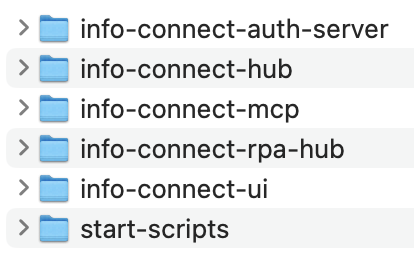
-
Optional: review the Hub configuration in
<hub-home>/info-connect-hub/config/application.properties. It includes the logging, database location, HTTP port and authentication settings. Each additional module has its ownconfigdirectory with its own properties files.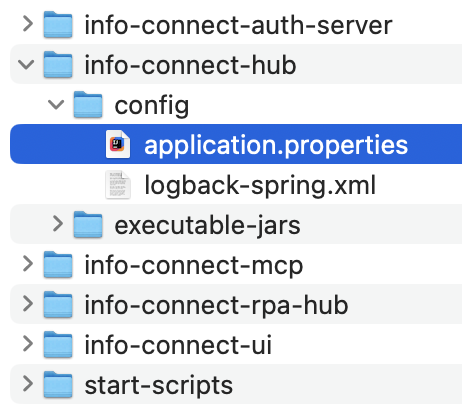
-
Start the Hub with the start script in
<hub-home>/start-scripts:- Windows: double-click
infoconnect-hub.bat. -
Linux and macOS (other Unix-like systems need PowerShell Core,
pwsh): open a terminal, go to the<hub-home>/start-scriptsdirectory and run:
- Windows: double-click
-
On the first launch, answer the two setup prompts. First enter the credentials, then choose the modules to start.
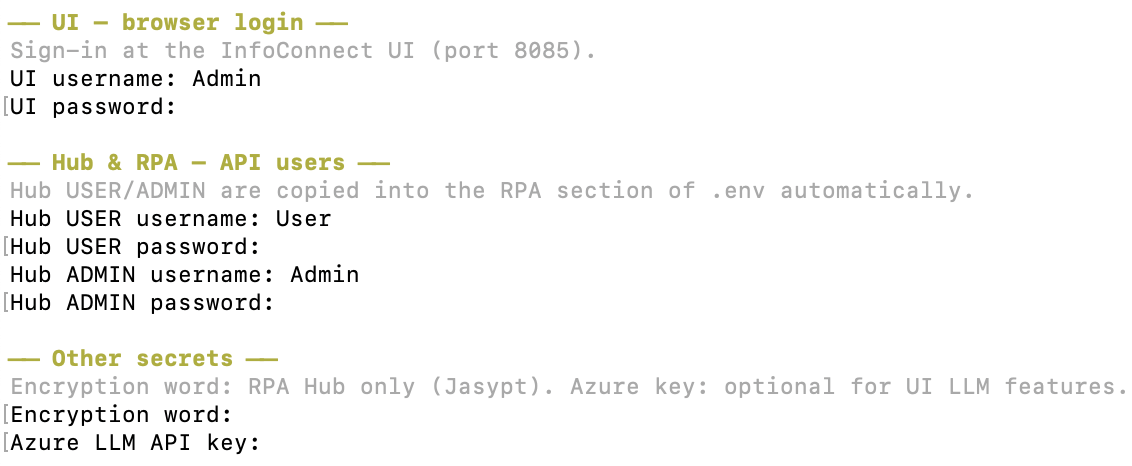
-
Open the web UI at
http://localhost:8085and sign in with the UI credentials from step 5.
Note
The first-launch wizards create start-scripts/config/.env (credentials) and start-scripts/config/modules.conf (modules to start). To stop the modules that the script started, press Ctrl+C in the terminal.
To change the credentials later, run change-default-creds.bat (Windows) or bash change-default-creds.sh (Linux and macOS) in <hub-home>/start-scripts. The script updates all Hub components. See also Changing the default user ID and password.
When the Hub is running, the modules use these default ports:
| Module | Port |
|---|---|
| Hub (Admin and Functional APIs) | 8080 |
| Auth server (optional, disabled by default) | 8081 |
| RPA Hub | 8082 |
| MCP server | 8083 |
| Web UI | 8085 |
Besides the web UI, you can configure and call the Hub APIs with Postman, cURL or any other REST client. For the distribution layout, Windows and Linux services, updates and troubleshooting, see Installation, Services and Updates. For Docker, Kubernetes and Cloud Run, see Deploying InfoConnect Hub with Docker, Kubernetes and Cloud Run.
Warning
The stand-alone binary distribution requires a valid license. Without it, configuration and API requests fail with a license error. To get a license, contact the Infoview sales team at sales@infoviewsystems.com or +1 (734) 293-2160. A Hub launched from AWS Marketplace, Azure Marketplace or another marketplace with metered subscription needs no separate license.
License management
A stand-alone InfoConnect Hub requires a valid license that authorizes access to specific IBM i servers. A Hub launched from AWS Marketplace or another supported marketplace needs no separate license.
Without a valid license, connections get the status WARNING or FAILED and the connection details contain the license error. See License and connection status.
Contact Infoview Systems for pricing, a trial license or support.
You can keep the license file in one of these locations: the local file system, an AWS S3 bucket, an HTTP/HTTPS server, FTP, SMB or Azure Blob Storage. You define the location, the credentials and the other attributes in the connection configuration through the Admin API. The following table lists the properties for each protocol:
| Protocol | Properties |
|---|---|
| S3 | s3Bucket=<path-to-bucket>, s3Region=<region>, s3AccessKey=<encrypted-access-key>, s3SecretKey=<encrypted-secret-key> |
| HTTP/HTTPS | httpUrl=<http-url>, httpDirPath=<license-file-path>, httpUsername=<username>, httpPassword=<encrypted-password> |
| FTP | ftpHost=<ftp-host>, ftpDirPath=<path>, ftpUsername=<username>, ftpPassword=<encrypted-password> |
| FILE/SMB | filePath=<path-to-license-file> |
| Azure Storage | connectionString=<encrypted-connection-string>, bucketName=<bucket-name> |
Next steps
- Quick start to create your first APIs and Data Flow.
- Installation, services and updates for services, updates, logs and troubleshooting.
- Deploying InfoConnect Hub with Docker, Kubernetes and Cloud Run for container platforms.